¶ Action Items in Eubrics
Action Items are the foundation of skill application on the Eubrics platform. These are short, structured tasks designed to help users practice and demonstrate a specific skill, concept, or behavior directly in real work scenarios.
They are contextual, level-based, and tailored to match the employee’s stage in their career journey—ensuring that development feels practical, hands-on, and impactful.
Action Items are not just learning activities—they are designed to drive behavioral change and skill adoption. Unlike passive content, Action Items require employees to engage, respond, and apply knowledge in real or simulated scenarios. This makes them a powerful tool to ensure that learning is retained, practiced, and translated into measurable workplace performance.
¶ What Are Action Items?
Action Items are:
- Bite-sized tasks focusing on applying individual skills or behaviors
- Curated to reinforce learning through real-world practice
- Designed for quick execution—act in minutes, not hours
- The bridge between concept clarity and measurable performance outcomes
While Action Items are powerful for skill application, they should be designed with clarity and relevance. Overloading employees with too many Action Items at once, or creating tasks that feel disconnected from real work, can lead to disengagement and reduced effectiveness. Always ensure Action Items are aligned with actual job contexts and career stages.
¶ Methods to Create Action Items in Eubrics
Action Items can be created in multiple ways on the Eubrics platform. Each method helps transform concepts into practical, skill-based tasks for employees.
¶ 1. Generate Mixed Nudges from Document
Upload a document, and the system will automatically generate a variety of nudges (small prompts) from its content. These nudges can then be shaped into actionable tasks.
¶ 2. Create Nudge from Text
Paste or write any text, and instantly convert it into a focused nudge that can guide employees to perform a specific action.
¶ 3. Create Case Study
Turn scenarios into case studies where employees learn by analyzing real or simulated workplace situations and applying their skills in context.
¶ 4. Tip with Impact and Consequence
Add a practical tip along with its impact (positive outcome if followed) and consequence (risk if ignored) to drive behavior change more effectively.
¶ 5. Add Rearrange Order
Design an activity where employees must arrange items in the correct sequence. This strengthens process understanding and logical thinking.
¶ 6. Add Match the Following
Create an interactive activity where employees connect items from two columns correctly, helping reinforce knowledge and relationships between concepts.
¶ Add Action Items(Match the Following)
¶ Overview
The Match the Following learning item is an interactive activity where learners pair items from the left column with their correct matches on the right column.
This activity supports both text and image-based options, making it flexible for various use cases such as vocabulary training, process mapping, terminology, definitions, and translations.
Learners can complete the activity by dragging items on right side.
Admins set correct item pairs. Users then see the items jumbled, match them correctly, and submit their responses for evaluation
¶ Learner Experience
-
Instruction Review
- Learners first read the question/instruction provided by the admin.
-
Shuffled Options
- Items on the left side (prompts) and right side (answers) are displayed in a randomized order.
-
Making Matches
- Learners drag lines between left-side and right-side items OR tap to select and connect pairs.
-
Adjustments
- Learners can remove and reassign matches before submission.
- Multiple attempts can be made until satisfied.
-
Submission
- Once learners submit, their answers are locked.
- If a time limit is active, their latest attempt is auto-submitted when the timer expires.
¶ Authoring Guide (Admin Setup)
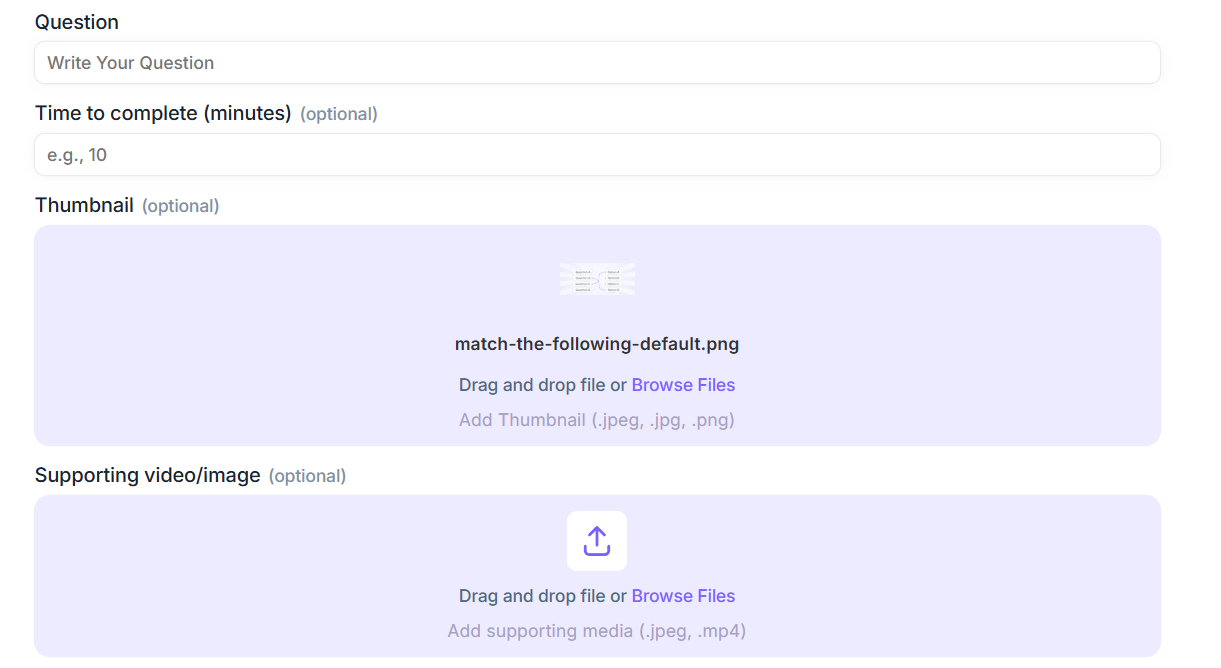
When creating a new Match the Following activity, configure the following options:
¶ 1. Question
- Enter a clear instruction or learning objective.
Example: Match each inventor with their invention.
¶ 2. Time Limit (Optional)
- Define the time in minutes for learners to complete the activity.
- If no time limit is set, learners can take unlimited time.
- If a time limit is set, the learner’s latest attempt will be auto-submitted when the timer expires.
¶ 3. Thumbnail (Optional)
- Upload a thumbnail image that will appear as the activity’s icon in the module.
- Recommended format: JPG/PNG, optimized for small previews.
¶ 4. Supporting Media (Optional)
- Add supplementary media such as a video or image.
- Useful for instructions, hints, or additional context (e.g., a reference chart).
¶ 5. Skill Score Impact
- Decide whether the activity will impact the learner’s overall skill score.
If enabled, correct matches will contribute to skill performance metrics.
If disabled, the activity will function as practice-only and not affect scores.
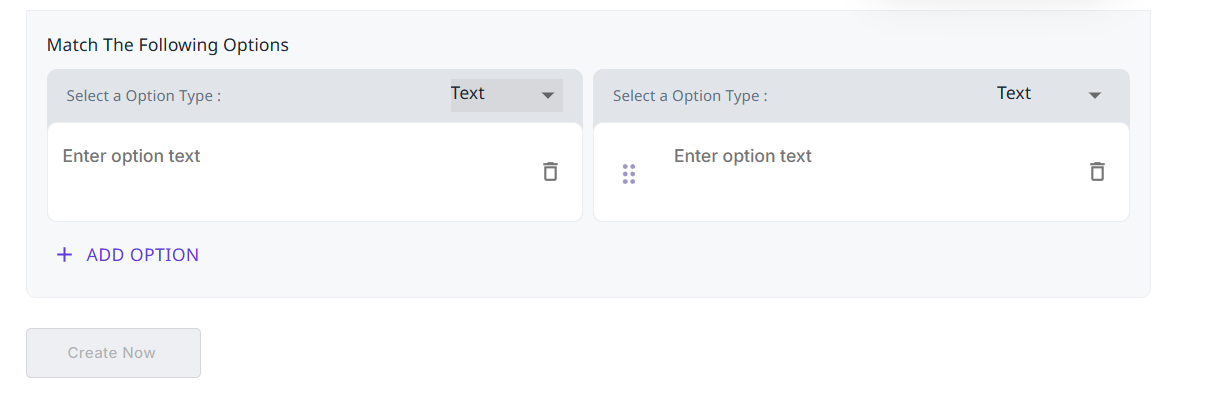
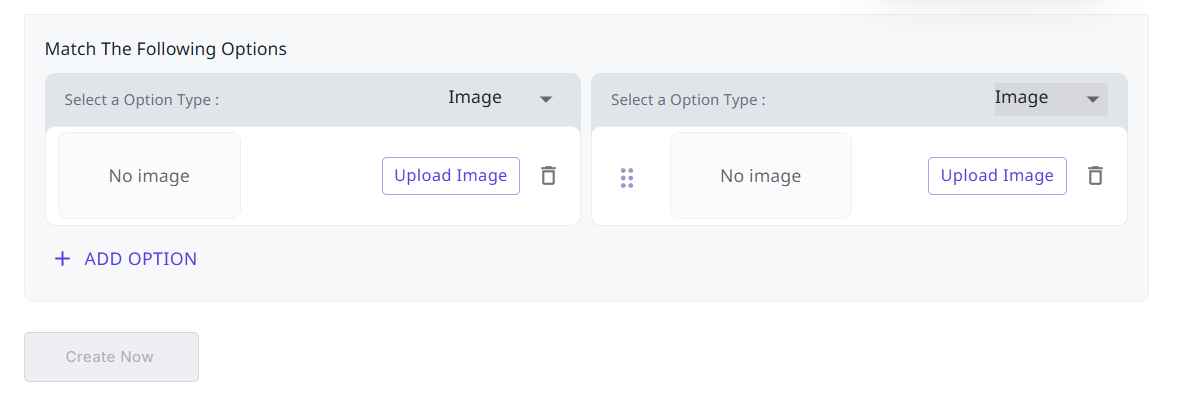
¶ 6. Options
- Left Side (Prompt Items)
- Can be Text (typed directly) or Image (uploaded from device).
- Example: “Dog”, “Cat”, “Elephant”
- Right Side (Answer Items)
- Can be Text (typed directly) or Image (uploaded from device).
- Example: “Barks”, “Meows”, “Trumpets”
- Define the correct pairings during setup.
- Add as many pairs as required. Each left item must have one right-side match.
¶ FOR TEXT
¶ FOR IMAGE
¶ 7. Completion
- After adding all options and defining correct pairs, click Create.
- The Match the Following activity will be published and made available to learners within their learning modules.
¶ Key Features
- Drag-and-drop or tap-to-match interaction.
- Optional time limit in minutes.
- Optional thumbnail for visual representation.
- Optional supporting media (video or image).
- Configurable skill score impact.
- Admin-defined correct answers, but shown to learners in a shuffled order.
¶ Create-Action-Item (Rearrange Order Learning Item)
¶ Overview
The Rearrange Order learning item is an interactive activity where learners must arrange a set of items (text or images) into the correct sequence.
It is designed to test sequencing, process understanding, and logical flow. Learners complete the activity by dragging and dropping items into place within a fixed time limit.
This activity can also be configured to impact a learner’s skill score.
Learners can rearrange the items by dragging them.
¶ Authoring Guide (Admin Setup)
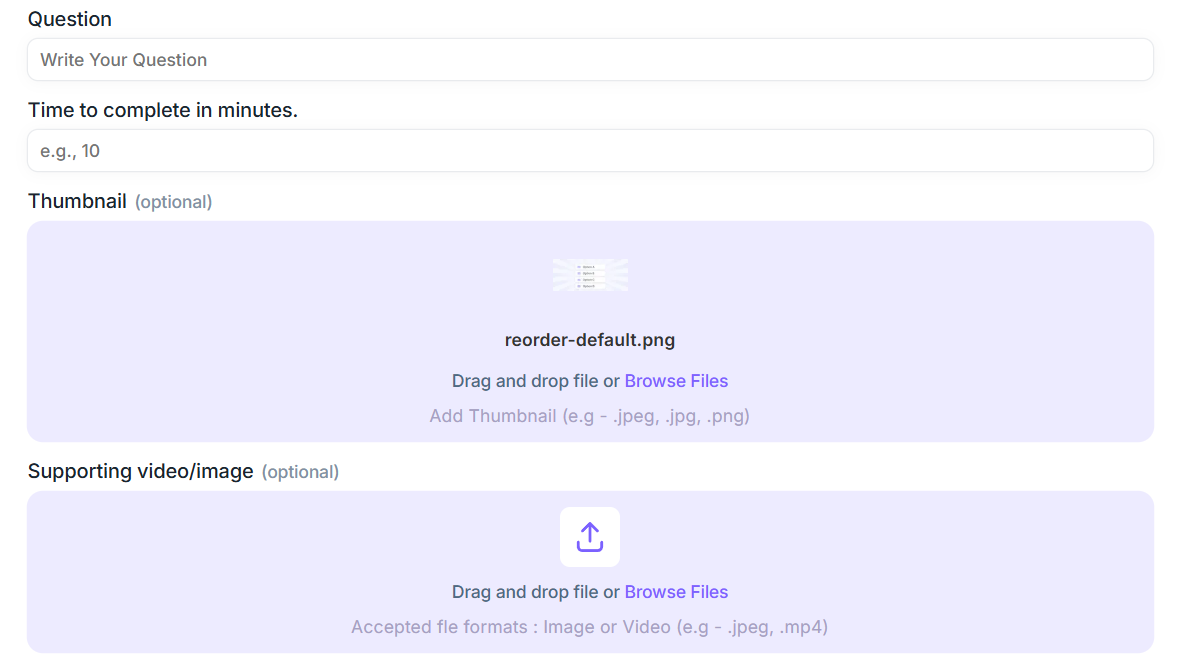
When creating a new Rearrange Order item, configure the following settings:
¶ 1. Question
- Enter a clear instruction or question.
Example: Arrange the steps of the software deployment process in the correct order.
¶ 2. Time Limit
- A mandatory time limit must be set for every activity.
- Defines how long the learner has to complete the rearrangement.
- Once the timer runs out, the learner’s latest arrangement is automatically submitted.
¶ 3. Thumbnail (Optional)
- Upload a thumbnail image to visually represent the activity in the module.
¶ 4. Supporting Media (Optional)
- Attach a video or image to provide learners with additional context or guidance.
¶ 5. Skill Score Impact
- Decide whether the learner’s performance in this activity contributes to their overall skill score.
- If enabled, successful completion will add to the user’s score.
¶ 6. Options
-
Choose the option type:
- Text → Enter text directly.
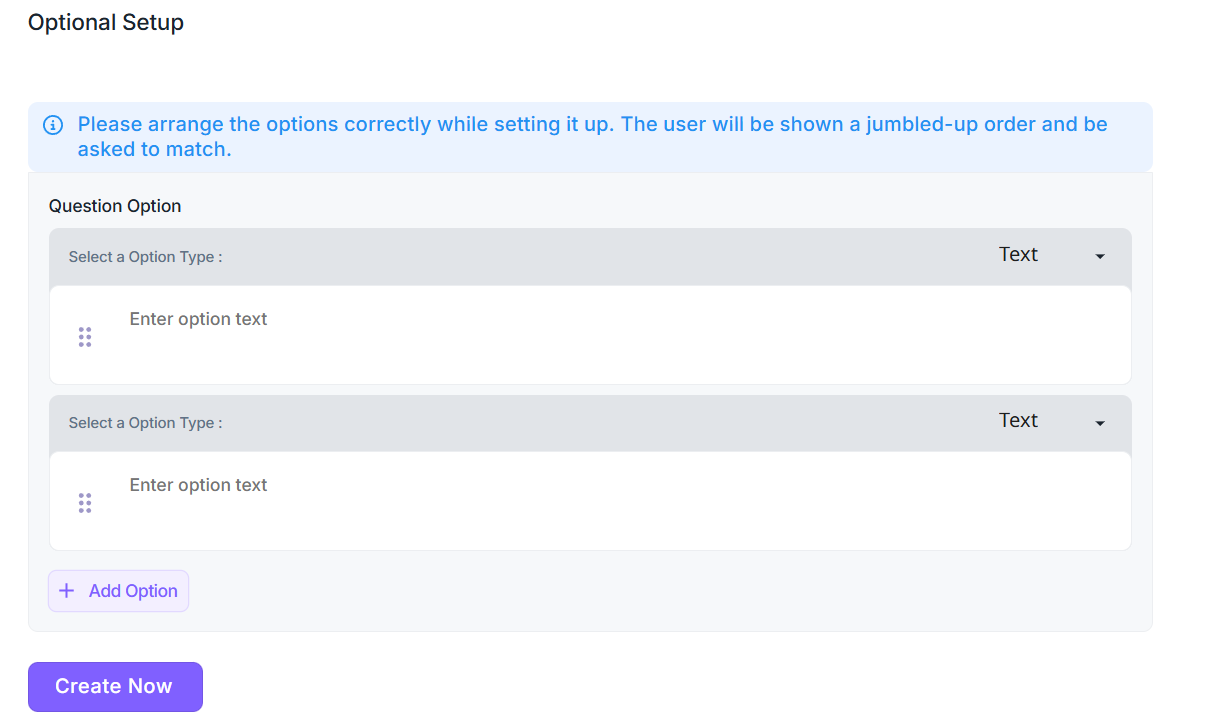
-
Image → Upload an image from your device.
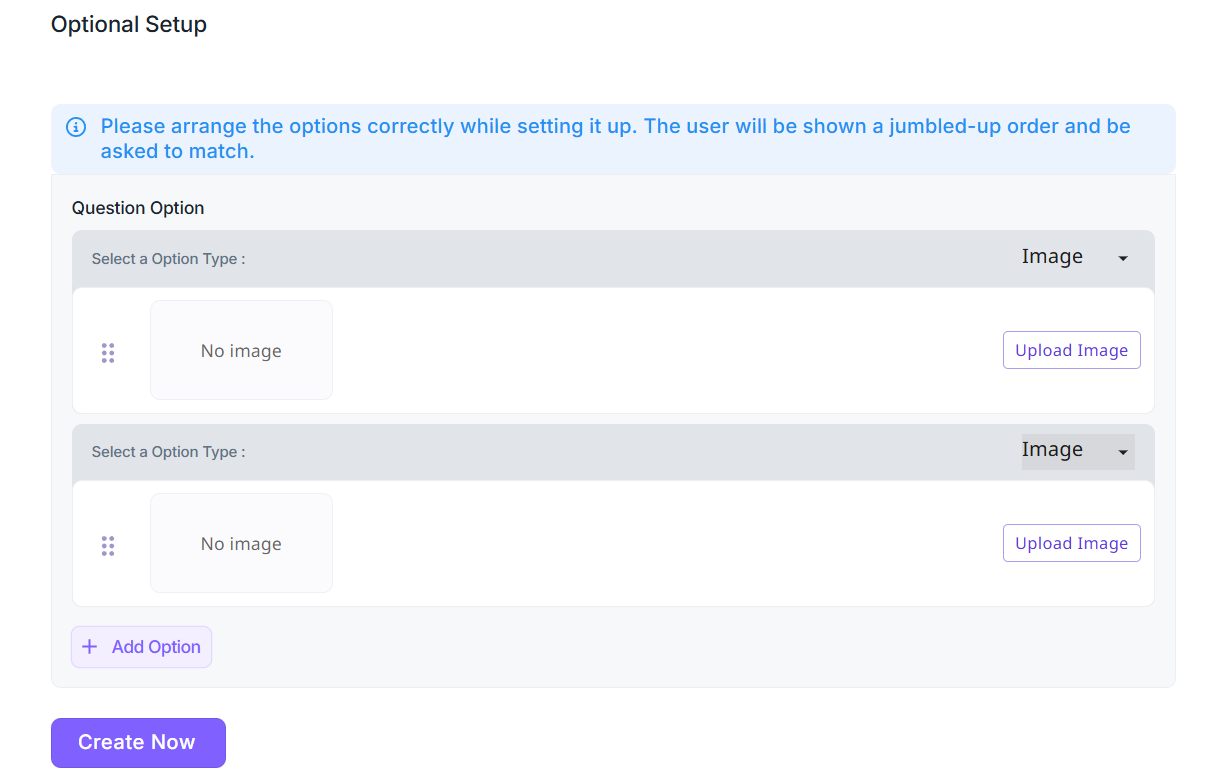
-
Add as many options as needed.
-
Define the correct order during setup.
Learners will see the items in a shuffled order.
¶ Learner Experience
- The learner reads the provided question/instruction.
- A countdown timer is always displayed.
- Items are shown in shuffled order.
- The learner drags and drops items to arrange them correctly.
- They can adjust the sequence multiple times before submission.
- When time runs out, the arrangement is auto-submitted.
¶ Key Features
- Mandatory timer for each activity
- Drag-and-drop interaction
- Optional media support (thumbnail, video, images)
- Configurable impact on learner’s skill score
- Correct sequence defined by admin, jumbled order shown to learner
¶ Completion
After configuring all options and setting a time limit, click Create.
The Rearrange Order activity will be published and made available to learners within their learning modules.
¶ Sequential MCQ Related
¶ Sequential MCQ Unrelated
¶ Sequential Subjective Related
¶ Fortune Cookie
¶ Add Uncover Concept
The Uncover Concept activity is designed to help learners build conceptual understanding through a two-step reflective approach.
Learners first attempt a question based on their current knowledge, then review the concept, and finally reattempt the same question after understanding the concept.
This method deepens learning, promotes self-evaluation, and reinforces knowledge retention.
¶ Overview
The Uncover Concept follows a structured learning flow:
- Attempt the Question (Before Concept) – Learners answer a question without prior explanation.
- Review the Concept – Learners read or watch a short explanation or video provided by the creator.
- Reattempt the Question (After Concept) – Learners answer the same question again using their new understanding.
- Measure Improvement – The system can optionally contribute the result to the learner’s Skill Score.
This activity works well for:
- Concept-based topics (e.g., leadership theories, negotiation techniques, marketing principles)
- Self-assessment and concept reinforcement
- Checking before-and-after understanding
¶ Steps to Create an Uncover Concept Activity
Below is a detailed guide for creators to set up the activity.
¶ Step 1: Add Title
- Field Name: Title
- Description: Provide a clear and descriptive title for your Uncover Concept activity.
- Example:
- “Understanding Emotional Intelligence”
- “Basics of Consultative Selling”
- Tip: Use concise titles that reflect the main topic of the concept.
¶ Step 2: Set Time Limit
- Field Name: Time to Complete
- Description: Define how long learners have to complete the activity (in minutes).
- Purpose: Helps manage session timing and keeps learners focused.
- Example:
- “5 minutes” for a single concept question
- “10 minutes” for detailed concepts
¶ Step 3: Upload Thumbnail (Optional)
- Field Name: Thumbnail
- Description: Upload an image that visually represents the concept.
- Purpose: Makes the activity more visually appealing in the learner dashboard.
¶ Step 4: Write the Question
-
Field Name: Question
-
Description: This is the main question learners will answer twice—before and after learning the concept.
-
Guidelines:
- Keep the question clear and focused on one concept.
- It can be multiple-choice, short answer, or open-ended.
- Avoid giving hints that reveal the concept too early.
-
Example Questions:
- “What does ‘active listening’ mean in the context of sales conversations?”
- “Why is empathy considered an important leadership trait?”
-
Learner Experience:
- First Attempt: Learner answers based on existing knowledge.
- After Concept Review: Learner reattempts after gaining understanding.
¶ Step 5: Enable Impact Skill Score (Optional)
- Field Name: Impact Skill Score
- Description: A toggle button to decide whether this activity contributes to the learner’s overall skill score.
- Options:
- On: The learner’s performance in both attempts impacts their skill score.
- Off: The activity remains purely reflective and does not affect scoring.
- Use Case:
- Turn ON for graded activities or when measuring concept mastery.
- Turn OFF for practice or ungraded sessions.
¶ Step 6: Add Concept Details
- Field Name: Concept Section
- Description: Provide the main concept explanation or supporting material that helps learners understand the topic.
- You Can Include:
- Written Explanation: A clear, structured text that introduces and explains the concept.
- Multimedia Support:
- Video: Embed or upload a short explanatory clip.
- Image: Add a relevant visual (diagram, infographic, etc.).
- Tips for Writing Concepts:
- Keep it concise and clear (2–4 short paragraphs).
- Include examples or analogies where relevant.
- Avoid jargon unless defined in the explanation.
Example Concept:
Active listening means focusing fully on the speaker, understanding their message, responding thoughtfully, and withholding judgment. It involves both verbal and non-verbal communication cues.
¶ Step 7: Learner Reattempt Section
- Learner Experience:
- After viewing the concept, the same question reappears for the learner to reattempt.
- They apply their newly learned understanding to answer better.
- This allows learners to compare their initial and final responses.
¶ Step 8: Create Activity
- Once all fields are filled, click “Create Now.”
- The Uncover Concept activity will be added to the and will be visible to learner.
¶ Example Flow (Learner Perspective)
-
First Attempt:
The learner sees the question and answers it without any prior information. -
Concept Review:
The concept section appears — the learner reads the explanation or watches a video to understand the topic. -
Reattempt:
The same question is shown again. The learner answers it using their new understanding. -
Completion:
Once done, the system records both attempts.- If Impact Skill Score is enabled, the score contributes to the learner’s performance metrics.
- The learner can reflect on their progress.
¶ Creator Tips
- Keep the concept explanation short (ideally under 200 words) for better engagement.
- Use simple language to ensure clarity.
- Use the thumbnail strategically — an attractive image or video can increase learner interaction.
- Avoid including the answer in the concept title or question wording.