¶ Users
Users are individuals who have access to the Eubrics platform. Each user is tagged to relevant roles, departments, and managers to streamline workflows and operations.
Example Users: Employees, admins, project analysts, or any other designated roles within an organization.
¶ How are Users Created, and Why Can’t They Create Themselves?
Users are created by admins to maintain system integrity and organizational hierarchy. This ensures:
- Consistency: Correct tagging to roles, departments, and managers.
- Security: Prevents unauthorized access or misuse of the platform.
- Accuracy: Users are created based on verified organizational data.
Self-creation is restricted to ensure that only authorized personnel are onboarded with proper credentials and hierarchy.
¶ Visibility and Impact
The user field is visible to all roles (employees, admins, and analysts).
Impact of the user field for the employee:
- Users can view their profiles, including their assigned roles.
- If users are not created, employees cannot access the platform, complete learning journeys, or receive personalized action cards, disrupting their workflow and performance tracking.
Impact of the user field for the Admin and Project Analysts:
- The dashboards and metrics will miss key user data points, leading to incomplete insights and limiting the analysis of individual and organizational performance.
¶ How to Edit Users
There are 2 ways to edit users.
- Editing each user individually
- Editing users in bulk using an excel/csv upload
¶ Editing each user individually
- Navigate to the Users section.
- Select the user you want to edit.
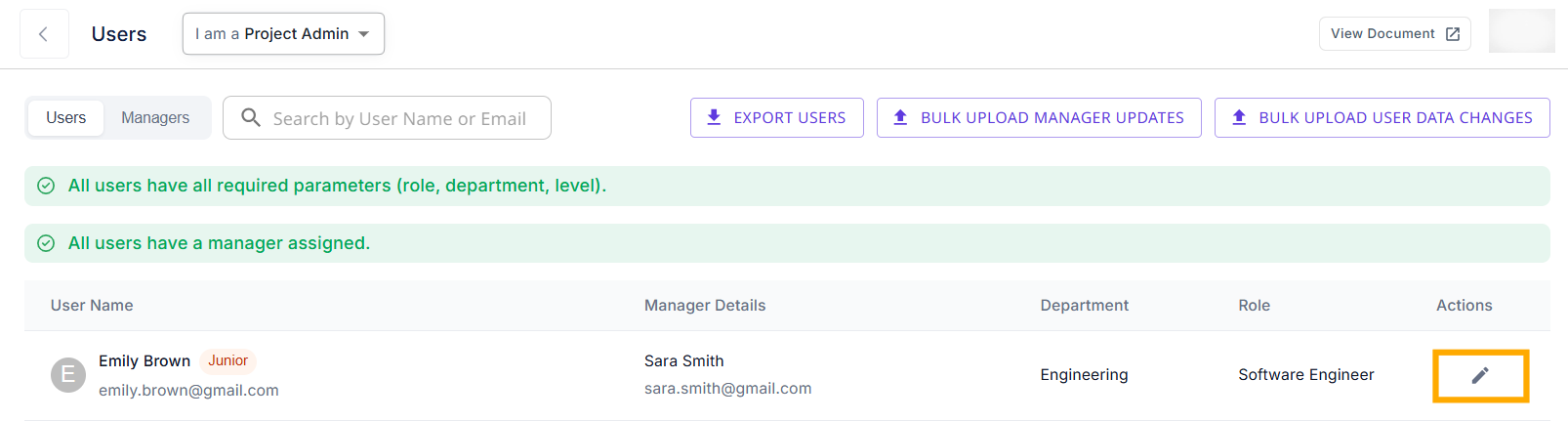
- Click on the Edit User button.
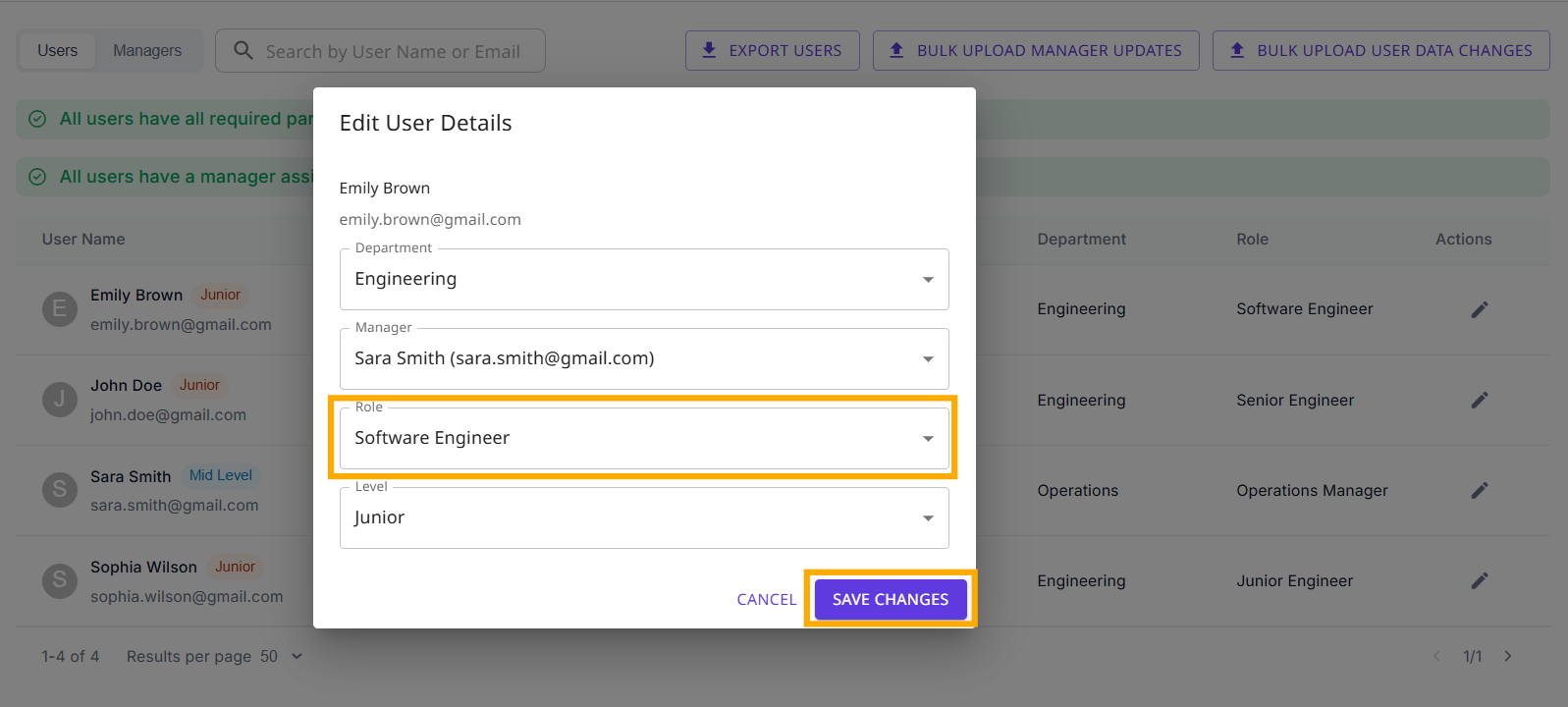
- Make the necessary changes (e.g., name, email, department, manager) and save.
¶ Editing users in bulk using an excel/csv upload
- Click on the Bulk Edit Users button.

- Download the sample excel/csv template.
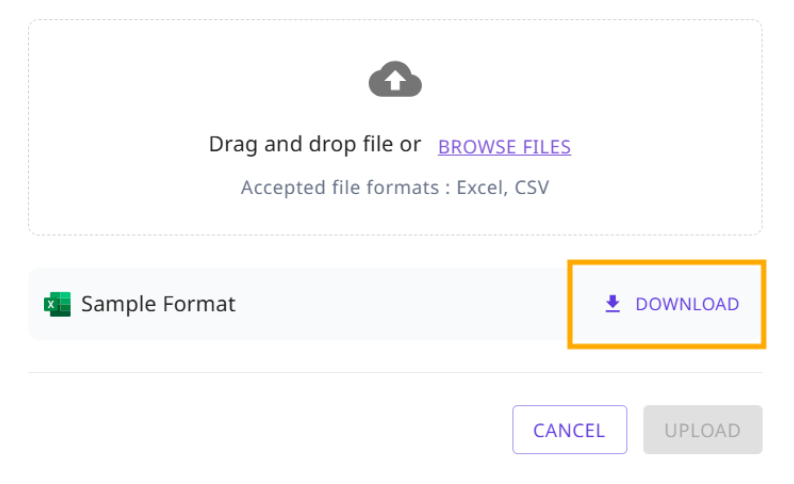
- Update the required fields for multiple users in the file.
- The first row of the excel/csv must contain the headings in the specified format - userEmailId, level, role, departmentName.
- Upload the updated file to the system.
¶ How to Change a Manager in Bulk
- Go to the Upload Manager Change section.

- Download the sample excel/csv template.
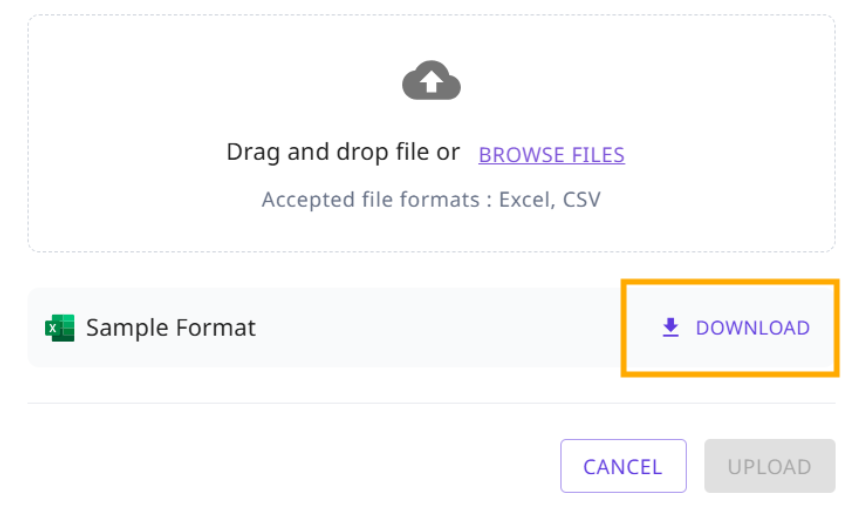
- Update the Managers EmailId fields for multiple users in the file.
- The first row of the excel/csv must contain the headings in the specified format - userEmailId, managerEmailId.
- Upload the updated file.
¶ How to Change a User’s Manager if the Manager Does Not Exist in the System
If a manager is not in the system, you must first:
- Create the Manager:
- Add the manager as a new user.
- Assign them the appropriate role and department.
- Reassign Users:
- Edit the users manually or via bulk upload to reflect the newly created manager.
¶ Frequently Asked Questions
- Can I change user details after creation?
- Yes, user details such as name, email, department, or manager can be updated at any time, and the changes will reflect immediately.
- Can I delete a user?
- No, users cannot be deleted. They can only be edited or reassigned.