¶ Departments
The Departments section allows the Admin to organize the workforce into functional groups within the organization.
Example Departments: Sales, Marketing, Human Resources, Finance, IT, Customer Support.
¶ Important Notes
Ensure each employee is assigned to the appropriate department to maintain smooth operations and accurate reporting.
Each user can belong to only one department at a time.
It is critical to assign each user to a department. Users not tagged to any department may face issues in accessing their learning journeys or completing assessments.
¶ Visibility and Impact
Department of an user is an important attribute. It is visible to the all the roles i.e employees, admins and analysts.(More about roles)
Impact of the department field for the employee:
- Each employee can view on their profile the department that they are tagged to
- Based on the department the user belongs to, the Eubrics AI system generates default work scenarios that the employees will use for action cards
- This will not be applicable if you neither use Eubrics modules, nor create your own action cards.
Impact of the department field for the Admin and Project Analysts:
- The dashboards and metrics provide different data points by departments
- The dashboards provide different data cuts for each department
¶ How to create departments
There are 2 ways to create departments.
- Creating each department individually
- Creating departments in bulk using an excel/csv upload
¶ Creating each department individually
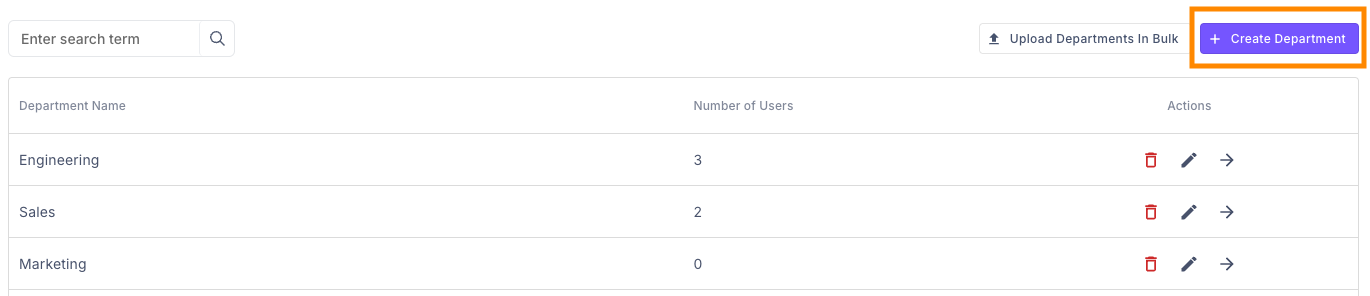
To create a new department click on the button 'Create Department'
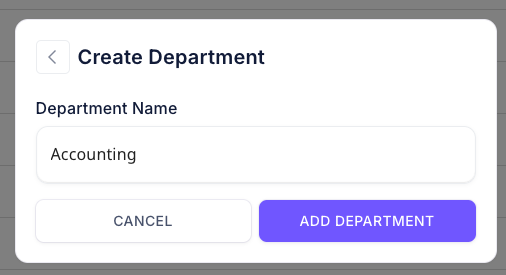
Enter the name of the department and submit the page.
¶ Creating multiple departments in bulk via csv/excel
You can also create multiple departments in one go using an excel upload. To do this:
Step 1: click on the button 'Upload Departments in Bulk'.

Step 2: Upload the excel in the specified format.
You can download the sample format available to ensure that you upload the details correctly.
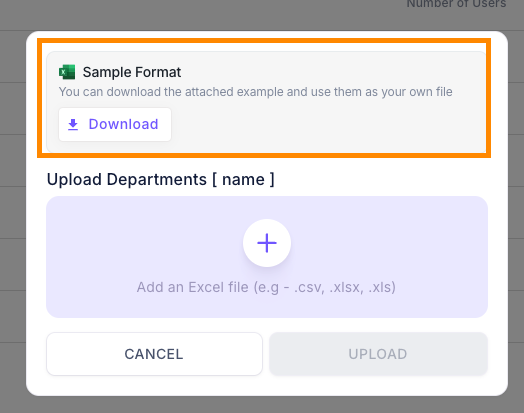
- The first row of the excel/csv must contain the heading in the specified format - name
- The names of the departments must come in the following rows
- Each row should contain the name of one department
¶ How to edit department names
To edit a department, you can choose the department that you want to edit from the list and click on the edit icon.

¶ How to delete departments
When you delete a department, all the employees who belonged to that department will no longer be tagged to any department. These employees will have to be tagged to an existing department to ensure they can access the application smoothly.
To delete a department, you can choose the department that you want to delete from the list and click on the delete icon.

¶ Frequently asked questions
- Can I change the name of the department once created?
- Yes, you can change the department name and it will reflect immediately for all roles.
- Can I delete a department?
- Yes, you can delete a department. But all the employees who belonged to that department will no longer be tagged to any department. These employees will have to be tagged to an existing department to ensure they can access the application smoothly.