¶ Module Level Challenges for Journey Cycles
Module-level challenges are the most effective gamification tools in the Eubrics system. They foster collaboration, engagement, and healthy competition among participants.
¶ Steps in Creating a Challenge:
- Define the Challenge
- Specify the challenge name and set the team size.
- Recommended Team Size: Teams of 3-4 members ensure maximum adoption and task completion.
- Teams of this size make it easier for all members to complete activities and earn bonus points.
- Larger teams may face challenges in coordinating activities, reducing the likelihood of earning team points.
- Assign Team Members
- Use the dynamic team assignment feature to automatically allocate participants.
- Alternatively, create and assign teams manually for greater control.
By carefully managing team size and assignments, module-level challenges can become a powerful way to motivate participants and drive learning outcomes.
¶ How to Create a Challenge:
¶ Create Challenge
To create a new challenge, follow these steps:
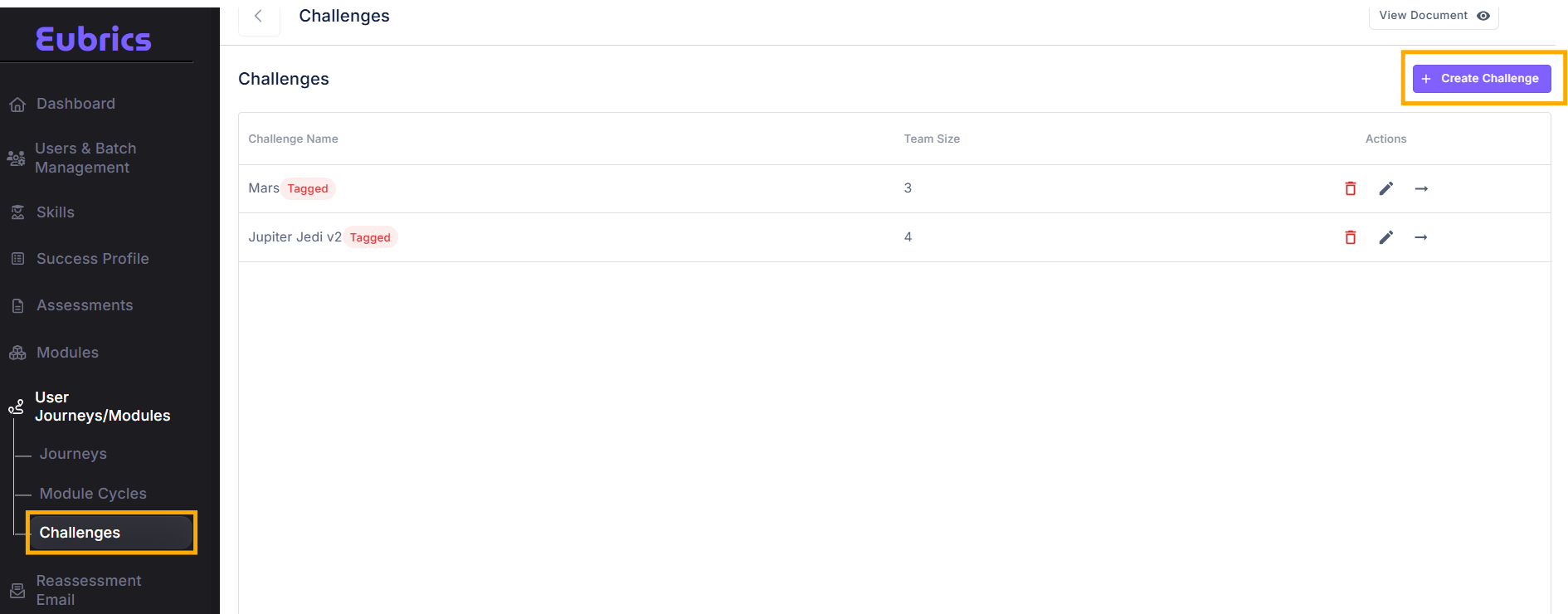
- Navigate to the "User Journeys/Modules" Section:
- From the left-hand navigation menu, select User Journeys/Modules.
- Click On Challenges:
- You will see a list of all existing journeys.
- Click on "Create Challenge":
- Locate the Create Challenge button at the top of the page.
- Click on it to open a modal window.
¶ Fields in the "Create Challenge" Form
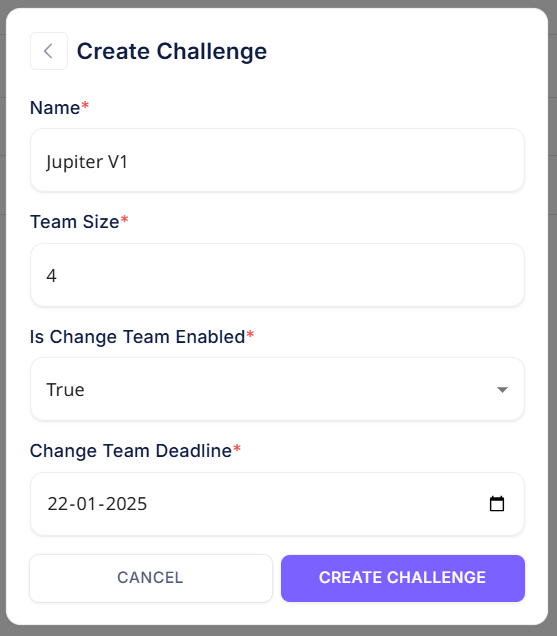
- Challenge Name
- Provide a name to identify the challenge.
- Team Size
- Define the number of participants per team (recommended: 3-4 members).
- Allow Team Changes
- Choose whether participants can create or switch teams themselves.
- If Enabled:
- Participants can form their own teams or switch teams until the end date of the learning phase.
- If Disabled:
- Teams are pre-defined by the administrator, which is ideal for forming specific team structures, such as grouping by departments or other strategic patterns.
- If Enabled:
- Choose whether participants can create or switch teams themselves.
This flexibility ensures challenges can be tailored to organizational needs while maintaining a balance between structure and participant autonomy.
¶ Create Teams
¶ Managing Challenges and Creating Teams
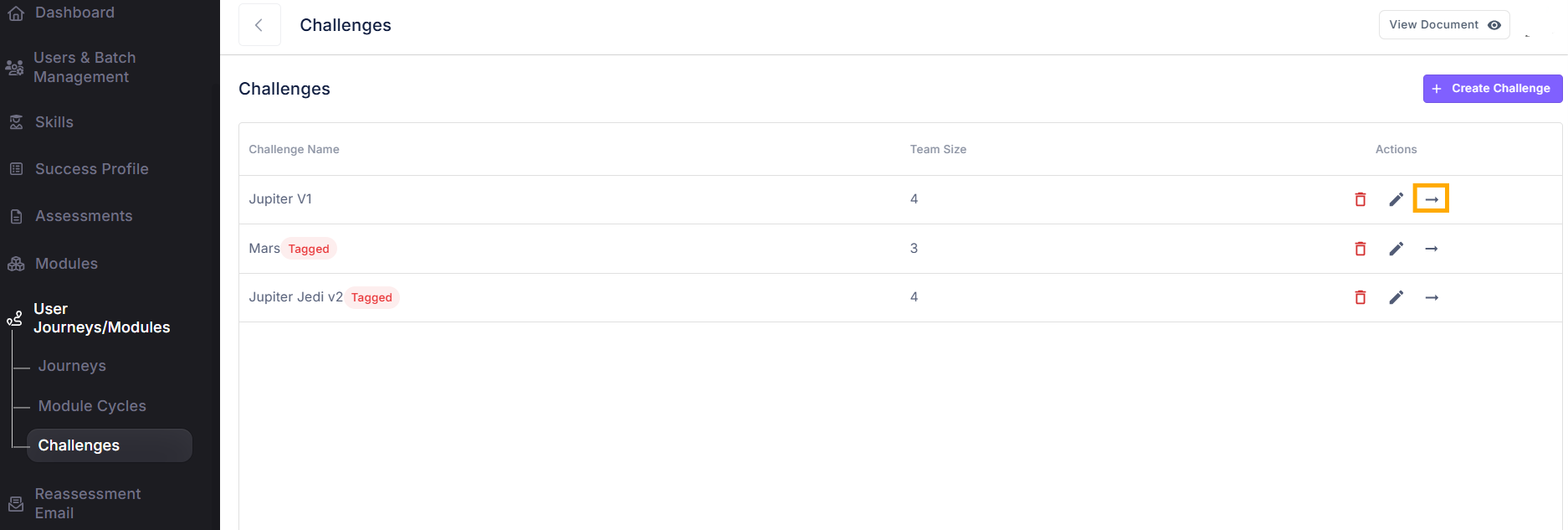
Once you’ve created a challenge, it will appear on the Challenges Page. Here’s how to proceed:
¶ Accessing the Challenge
- Locate your challenge in the list on the Challenges Page.
- Click on the arrow on the right-hand side to enter the challenge.
¶ Tagging the Challenge to a Module
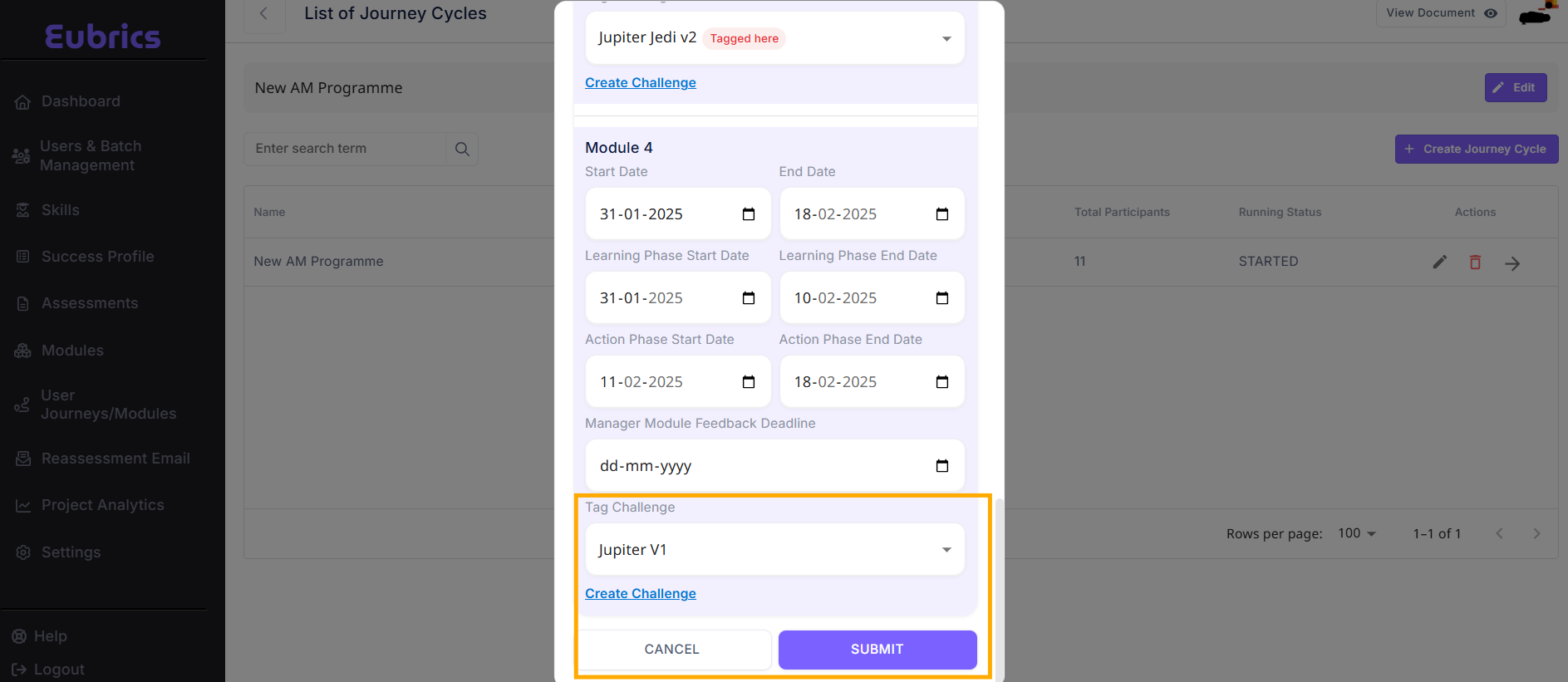
Before creating teams, the challenge must be linked to a specific module:
- Navigate to the Journey and select the desired Journey Cycle.
- Click the Edit button within the cycle.
- Locate the option to tag a challenge to a module and select the relevant challenge.
¶ Creating Teams
Once the challenge is tagged to a module, you can set up teams in two ways:
- Dynamic Team Creation
- Manual Team Creation
Dynamic team creation ensures efficiency, while manual creation allows customization for specific use cases. Choose the method that best fits your challenge's goals.
¶ 1. Dynamic Team Creation
- Enter the challenge from the Challenges Page.
- Click the Create Teams Dynamically button at the top-right corner.
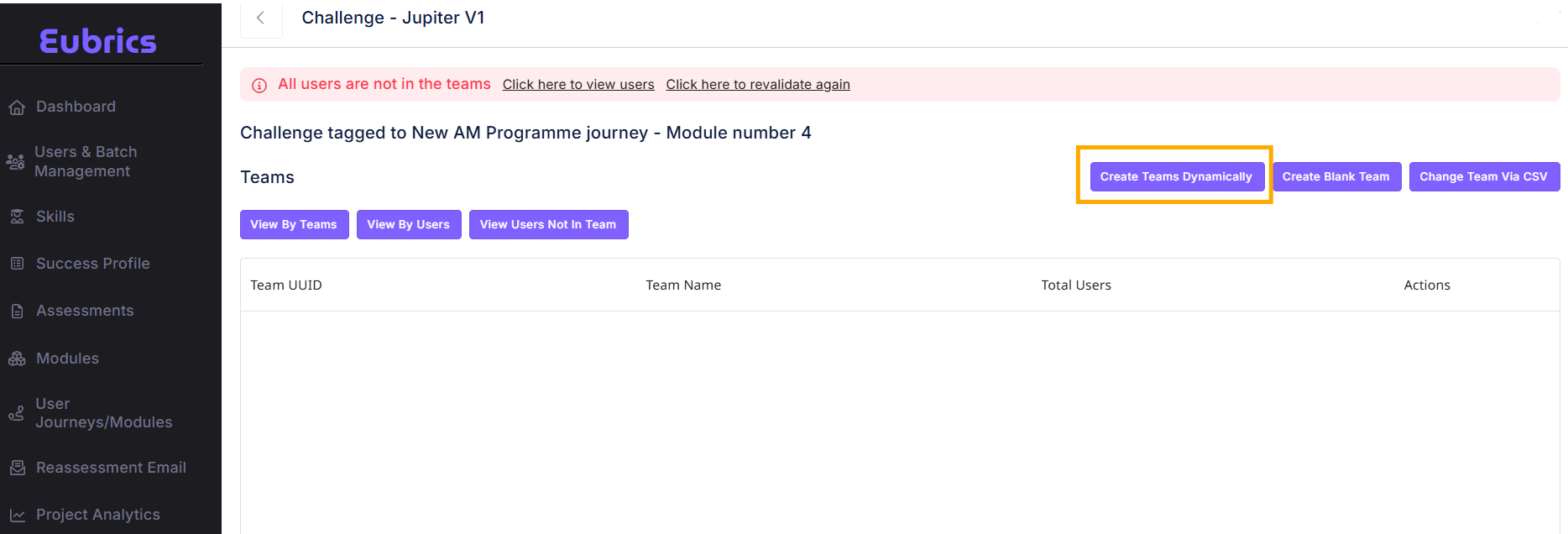
- Teams will be automatically generated based on:
- Department Priority: Users from the same department are grouped together first.
- Random Distribution: Remaining users from different departments are grouped into teams.
- Example:
- Participants: 21
- Team Size: 3
- Departments:
- Engineering: 10 participants → 3 teams of engineers, 1 leftover engineer
- Sales: 7 participants → 2 teams of salespeople, 1 leftover salesperson
- Marketing: 4 participants → 1 team of marketers
- Final Team: 1 engineer, 1 salesperson, and 1 marketer randomly grouped.
¶ 2. Manual Team Creation
For complete control over team composition, you can manually assign participants to teams. Here’s how to do it:
¶ Steps to Manually Create and Assign Teams
-
Access the Challenge
- Go to the Challenges Page and enter the desired challenge.
-
Create Blank Teams
-
Click on the Create Blank Teams button at the top-right corner.
-
Specify the number of empty teams you want to create.
-
Once submitted, the system will generate the specified number of blank teams without participants.
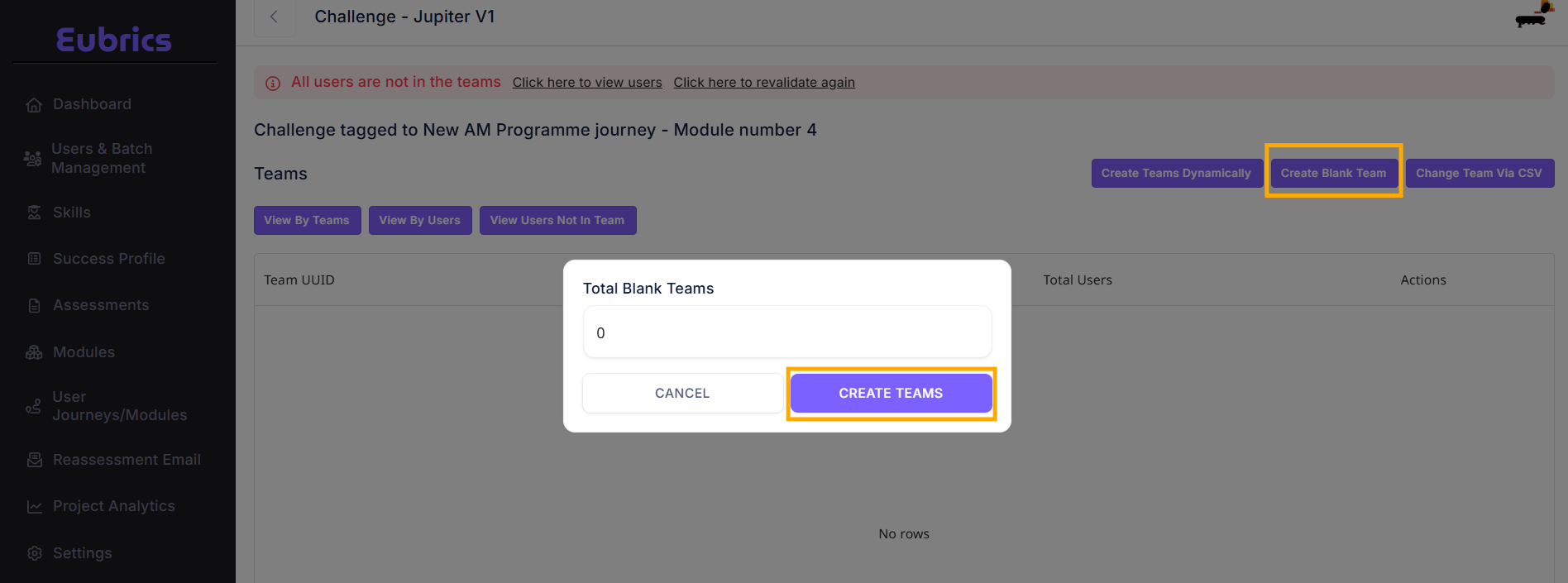
-
-
View Unassigned Users
-
Click the View Users Not in Any Team button.
-
This will display a list of users who are currently not assigned to any team.
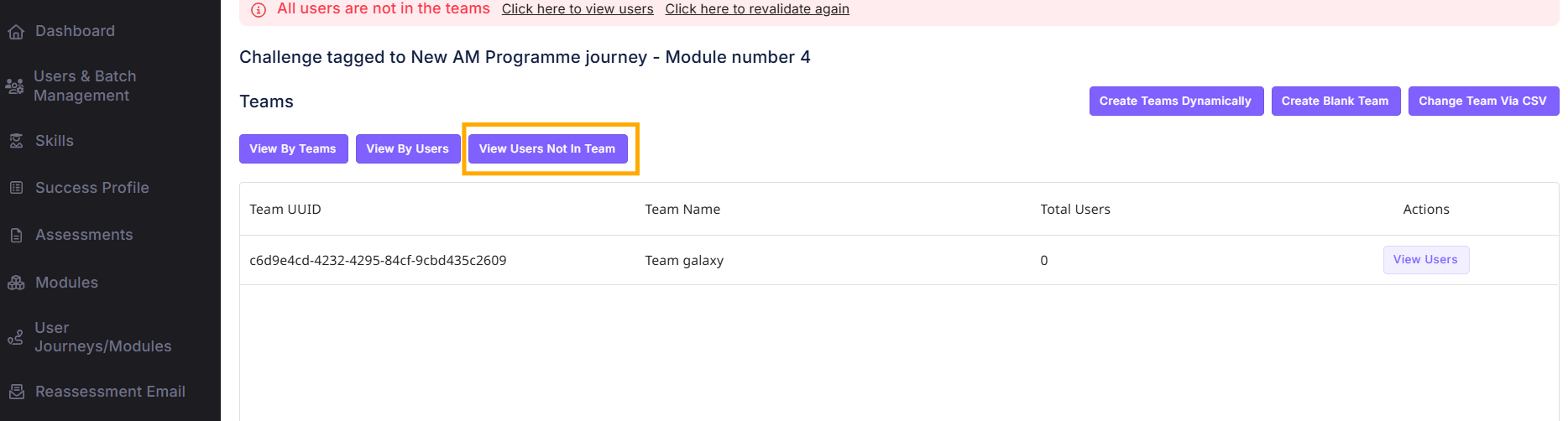
-
-
Assign Users to Teams
- Select the users you want to assign from the list of unassigned users.
- Click the Add to Team button and choose the blank team to which the selected users should be assigned.
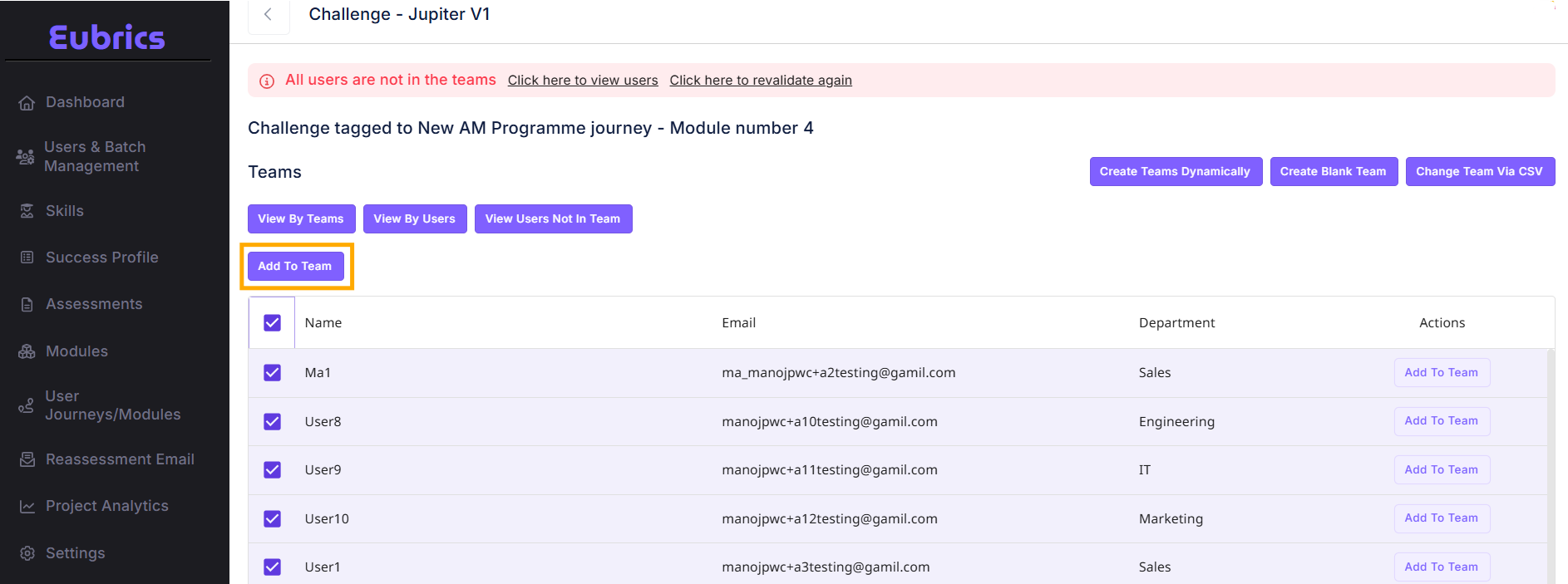
-
Repeat Until All Participants Are Assigned
- Ensure all users are assigned to one team or another.
- Until this process is complete, the page will give an error message on the top
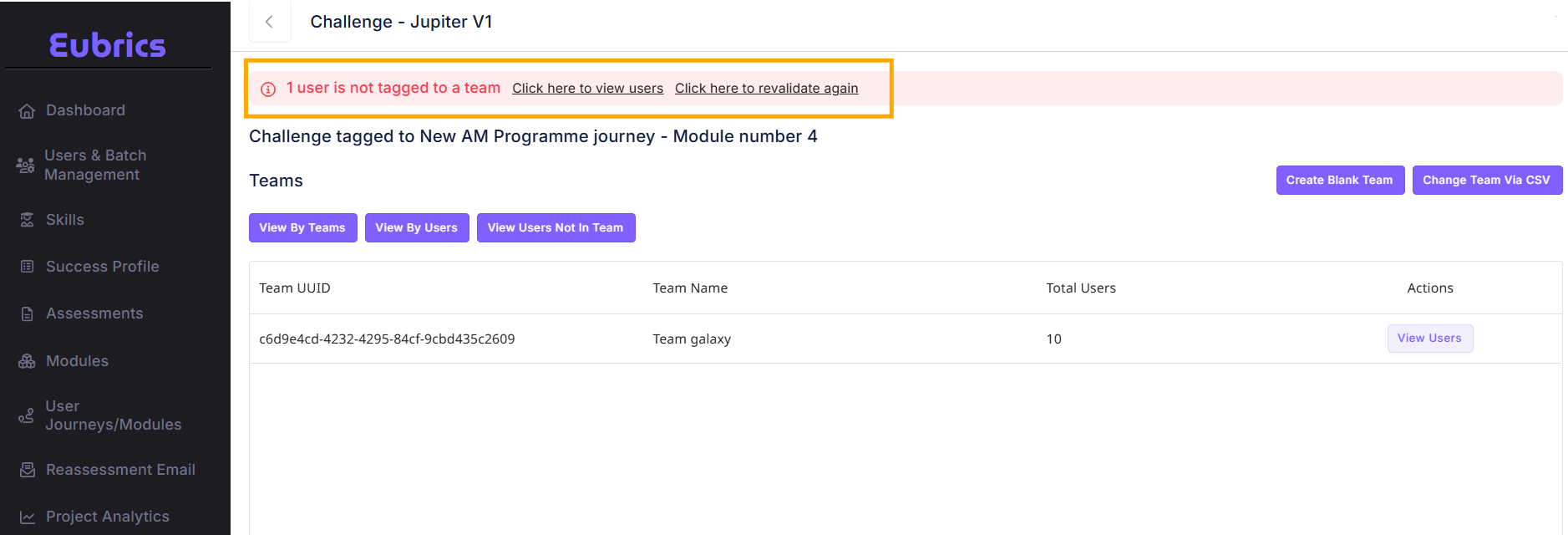
If participants are not assigned to any team, they will not be able to participate in the gamification.
This process allows for flexibility in team formation, enabling you to group participants based on organizational needs, preferences, or specific goals for the challenge.
¶ How to Create Module Level Gamification
Module-Level Gamification is designed to maintain engagement and consistency in long, habit-based modules that have distinct Learning and Action phases. This system encourages team collaboration, streak incentives, and a structured points system to foster sustained participation.
To set up Module-Level Gamification, follow these steps:
-
Navigate to Gamification Settings:
- Go to Admin Panel → Gamification → Module Level Gamification.
-
Configure Gamification Rules:
- Define the Points System:
- 10 points for completing mandatory learning/action items.
- Streak Points for consistent daily participation.
- Enable Team Bonus Points:
- Teams earn extra points for completing tasks together.
- Define the Points System:
-
Save and Apply:
- Click Save to apply gamification to the module.