¶ How to Add Trainer Details in VILT Session
¶ Overview
Adding trainer details in a VILT (Virtual Instructor-Led Training) session is essential to ensure that the right trainer is associated with the session. Trainers can be added in multiple ways, including selecting an existing trainer or creating a new trainer profile.
¶ Steps to Add Trainer Details
¶ 1. Navigating to Trainer Details
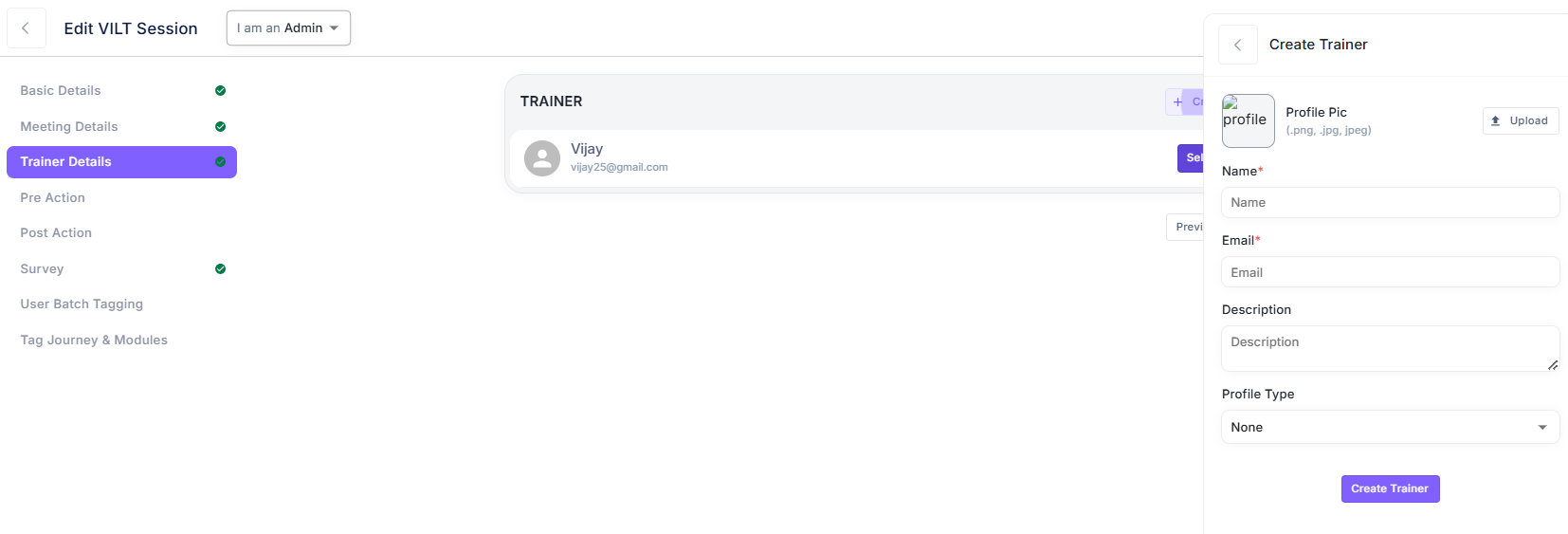
- Go to the Edit VILT Session page.
- Click on the Trainer Details tab from the left-side navigation menu.
¶ 2. Selecting an Existing Trainer
- If trainers are already created, they will be listed.
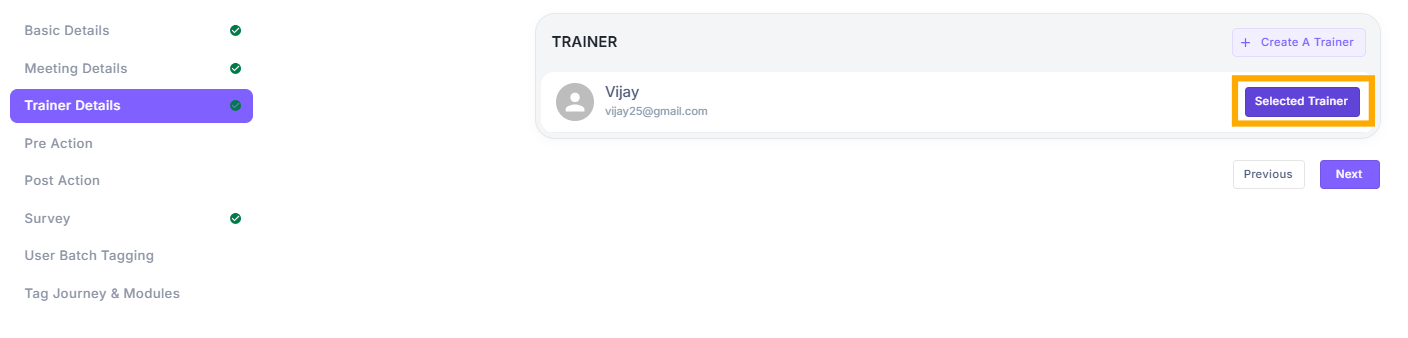
- Click on the Select Trainer button next to the desired trainer's name.
¶ 3. Creating a New Trainer
If the trainer is not already in the system, you need to create a new trainer profile.
- Click on the Create A Trainer button.
- A form will appear on the right side of the screen.
¶ 4. Filling Trainer Details
- Profile Pic: Upload a profile picture (supported formats:
.png,.jpg,.jpeg). - Name: Enter the trainer’s full name (mandatory).
- Email: Provide the trainer’s email address (mandatory).
- Description: Add any additional details about the trainer, such as their expertise or role.
- Profile Type: Select the profile type (if applicable).
Once all details are filled in, click Create Trainer to save the profile.
¶ 5. Assigning the Trainer to the Session
- Once created, the trainer will be listed under Trainer Details.
- Click on Select Trainer to assign them to the VILT session.
¶ Additional Information
- Multiple trainers can be added to a session.
- Trainers do not have a dedicated dashboard. While they can log in, they will not have any visible dashboard functionality.
- The trainer's profile, once added, will be visible in the session details for reference.
¶ Summary
Adding a trainer is a simple process that involves selecting an existing trainer or creating a new trainer profile. Trainers can be identified with a profile picture and description, and once assigned, they will be linked to the VILT session.